

Drop images here

Up to 20 images, max 5 MB each.Get Pro

JPG · PNG · WebP · AVIF · HEIC

Batch compress and convert images. No uploads.

Compress or convert up to 20 JPG, PNG, WebP, AVIF and iPhone HEIC images directly in your browser, 5 MB each. No daily quota and no image uploads.

Capabilities and limits are resolved from the current Free and Pro plan configuration.

Browser-side
No uploads
20 per free batch
Multiple output formats

Real VidSmaller output

89% smaller. Can you tell the difference?

A real 1800×1000 sunset photo compressed with VidSmaller's default settings: 453.8 KB → 50.8 KB. Drag the divider and inspect the sailboat, reflection and glowing sky.

A sailboat on a reflective sea at sunset comparing the original and compressed image qualityOriginal · 453.8 KBVidSmaller JPG · 50.8 KB

Drag the divider to compare. Zoom to 1:1 to inspect fine detail.

Original
453.8 KB
VidSmaller
50.8 KB
Saved
89%

Photo: Johannes Plenio / Pexels

Simple by default

Choose a batch, let the browser convert it, then download the results together.

  1. 01

    Drop images

    Add iPhone HEIC photos or other supported images. Free includes 20 files per batch, 5 MB each.

  2. 02

    Compress locally

    The browser re-encodes each image and removes metadata automatically.

  3. 03

    Download smaller files

    Save one file, pick a converted format, or download the whole batch as a ZIP.

A free image compressor that never uploads your files

Compress and convert common image formats, including iPhone HEIC photos, inside your browser without sending image bytes to VidSmaller.

One quality setting, already chosen for you

Most compression tools open with a slider and leave the decision to you, which means guessing. Quality 90 costs several times the bytes of quality 65 for a difference you may not see, while very low quality starts to smear detail. VidSmaller uses one conservative default so every batch stays predictable.

Because everything runs locally, you can shrink a PNG for the web, cut a phone photo down for email, or prepare a batch for a CMS without ever sending a file to a server.
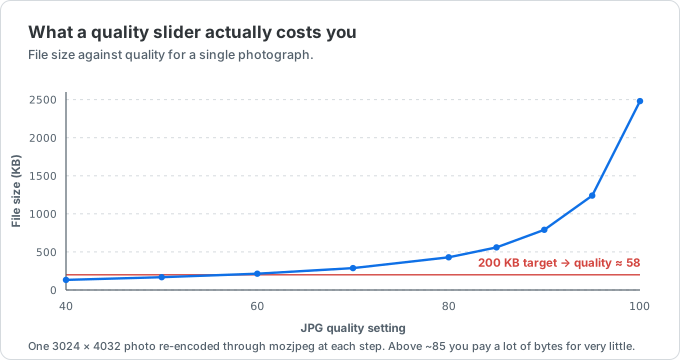
A curve of JPG file size against quality setting for one 1.8 MB photo. The curve is nearly flat below 70 and climbs steeply above 85, so quality 65 sits near the useful balance between size and visible detail.
Why there is no quality slider: file size barely moves below quality 70 and rises sharply above 85, so one well-chosen point beats guessing at every batch.

Compress JPG, PNG and WebP without losing visible quality

JPG and HEIC photos are re-encoded with MozJPEG at one consistent quality. Every result reports exact bytes so you can compare formats and keep the smallest useful output.

PNG is where a lossless-only optimiser can run out of road. Photo PNGs can be re-encoded to a colour palette before OxiPNG optimisation, while screenshots, logos and line art that already fit a palette do not pay for colours they never use. Animated PNG files keep their animation, and WebP goes through libwebp instead of a generic canvas export.

MozJPEG, libwebp, OxiPNG, libavif and libjxl are open-source WebAssembly codec families also used by tools such as Squoosh. VidSmaller adds the batch workflow: multiple files, several formats side by side, HEIC input and one ZIP download.

See what compression changes before using the result

A byte count cannot tell you whether a photo still looks right. Use the comparison above to drag between the original and compressed image, then switch to 1:1 to inspect the sailboat, reflection and fine sky detail at native resolution.

For your own files, turn on automatic conversion and compare the byte count for WebP, JPG, PNG, AVIF or JPEG XL. Each selected format is generated side by side, so the trade-off is visible instead of guessed.

100% browser-side — your images never leave your device

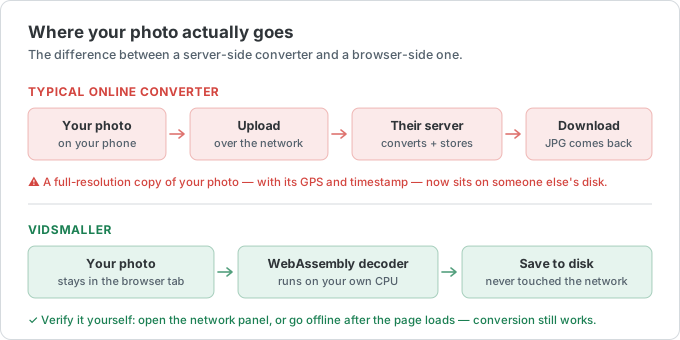
Many online compressors upload your photo to a server. VidSmaller's image pipeline runs on your machine with WebAssembly, so image bytes are not sent to VidSmaller. After the local codecs are ready, prepared formats continue working without an upload step.

That makes local compression suitable for ID scans, medical images, contracts and anything else you would rather not hand to a third party.

Two flows compared. A typical online converter uploads a photo to a server, while VidSmaller converts it inside the browser tab so the photo does not cross the network.
The compression runs on your own CPU. No image upload step exists to fail or expose the source file.

Batch compress and download as a ZIP

Add up to 20 images at once on the Free plan, up to 5 MB each, with no daily image quota. Every file is processed independently, and you can download them one by one or grab the whole batch as a ZIP.

Pro raises the browser-safe batch to 500 images and 150 MB per image, adds folder upload and unlocks the complete batch studio. Image processing still does not spend video credits.

See Pro image limits

Test the result on your own image

Drop a photo into the workspace above. The source stays on your device, and the result shows its exact format, byte size and saving.

Compress an image

Keep working with common formats and size limits

Each shortcut opens the same private workspace with a matching output format or exact size target.

Image compressor FAQ

The most-asked questions about compressing images. Anything missing?