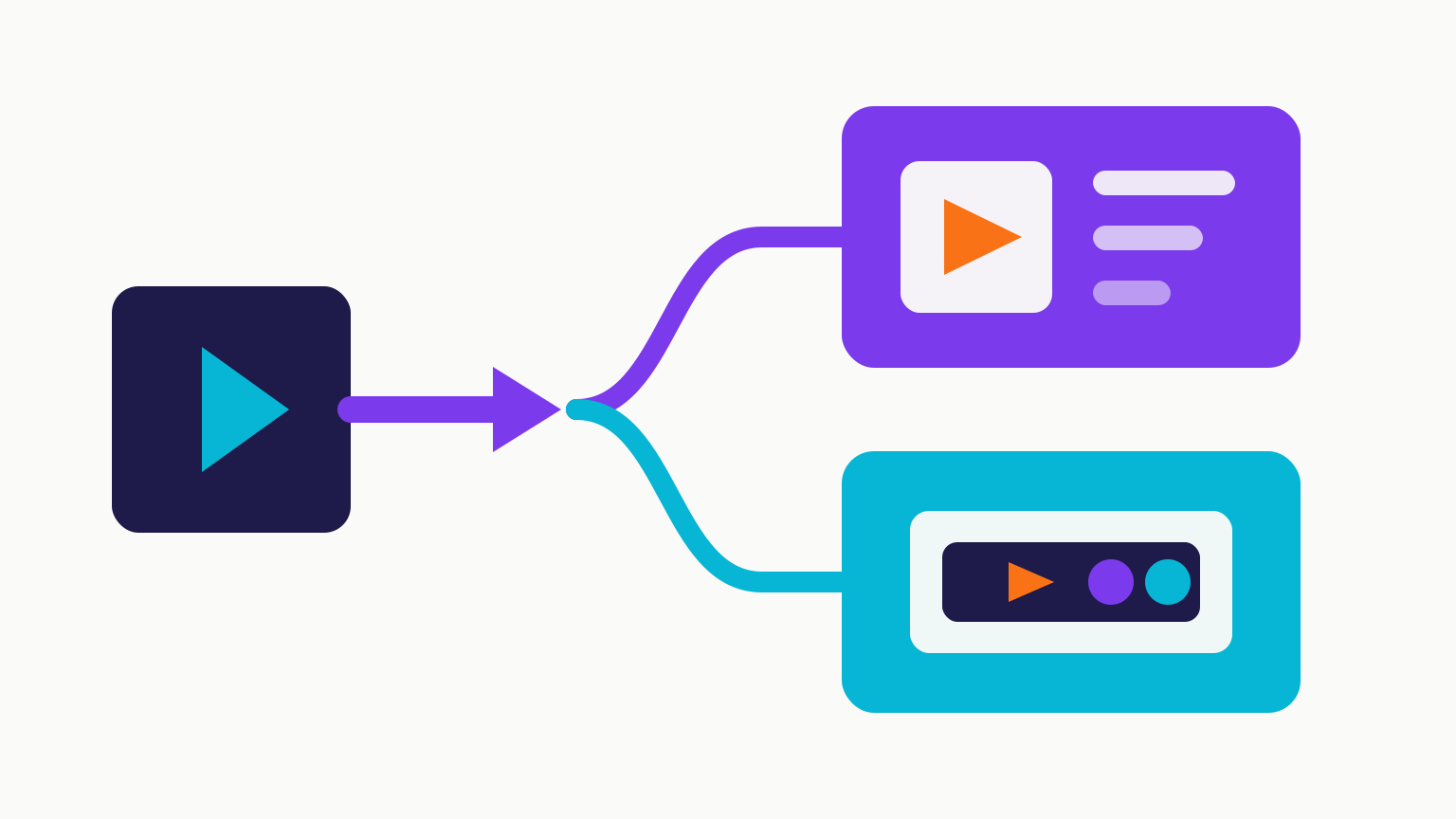
Video transcoding is the process of decoding an already encoded video and encoding it again with different settings. You transcode when you need to change the codec, bitrate, resolution, frame rate, or another property of the media stream. If you only need to move the existing streams into a different container, you usually want remuxing, not transcoding.
That distinction matters. Transcoding can make a video smaller or more compatible, but it costs processing time and usually introduces some quality loss. Remuxing is much faster and preserves the original encoded quality, but it cannot shrink the video meaningfully or change an incompatible codec.
Quick takeaways
- Transcode when you need a new codec, lower bitrate, smaller file, different resolution, or burned-in captions.
- Remux when the video and audio codecs already work on the destination and only the container needs to change.
- Encoding turns raw frames into a compressed video stream; transcoding starts with a stream that has already been encoded.
- Compression is the broader goal of representing video with fewer bits. Most practical video encoding is compressed.
- Repeated lossy transcoding causes generation loss, so keep a high-quality source and avoid unnecessary re-encodes.
- An
.mp4filename does not guarantee compatibility. MP4 is a container; the codec inside still matters.
What happens during video transcoding?
A normal transcoding pipeline has three main stages:
- Decode: read the compressed input stream and reconstruct video frames and audio samples.
- Transform: optionally resize, crop, change frame rate, add overlays, normalize audio, or apply other filters.
- Encode: compress the transformed media into a new video and audio stream, then package those streams in an output container.
The FFmpeg documentation uses the same precise definition: transcoding decodes a stream and then encodes it again. That extra encode is why transcoding takes much longer than merely copying an existing stream.
A common example is a 4K HEVC recording from a phone that needs to play reliably in older browsers. A service might transcode it to 1080p H.264 with AAC audio in an MP4 container. The result is more widely compatible and may be much smaller, but it is not a byte-for-byte copy of the source.
Encoding vs. transcoding vs. compression vs. remuxing
These terms are related, but they describe different things.
| Process | What changes? | Decode and re-encode? | Typical result |
|---|---|---|---|
| Encoding | Raw frames become an encoded stream | Encode only | Camera or editor creates H.264, H.265, AV1, or another codec |
| Transcoding | Codec, bitrate, resolution, frame rate, or stream properties | Yes | Existing video becomes a new encoded version |
| Compression | The amount of data needed to represent the video | Usually | Smaller storage or bandwidth requirement |
| Remuxing / transmuxing | Container and container-level metadata | No | Existing streams move from one compatible container to another |
Encoding and compression are often used as if they mean the same thing because modern video encoders normally compress the image data. Technically, however, encoding describes the conversion into a coded representation, while compression describes reducing how much data that representation needs.
Transcoding is a second encoding pass over media that was already encoded. Remuxing takes a different path: it copies the existing encoded packets without decoding the video frames.
Amazon's IVS glossary describes transcoding as converting audio or video into another format, potentially at several bitrates and resolutions. It defines transmuxing as changing the container without re-encoding the video stream.
Codec vs. container: the source of most confusion
A codec defines how video or audio is encoded and decoded. Examples include:
- H.264 / AVC
- H.265 / HEVC
- AV1
- VP9
- AAC and Opus for audio
A container holds one or more media streams plus metadata. Common containers include MP4, MOV, MKV, and WebM.
Think of the container as a box and the codecs as the way the items inside that box are packed. Renaming video.mkv to video.mp4 changes the label on the box, not its contents. A proper remux builds a new box around the same streams. A transcode replaces at least one of the streams with a newly encoded one.
This explains why an MP4 can still fail to play. The device may understand the MP4 container but not the HEVC video, unusual audio codec, profile, level, pixel format, or other stream properties inside it.
When should you transcode a video?
1. The destination cannot decode the source codec
Compatibility is one of the strongest reasons to transcode. Converting an unsupported codec to broadly supported H.264 can make a file playable across more browsers, messaging apps, presentation tools, and older devices.
2. You need a smaller file
Changing the container alone normally does not produce a meaningful size reduction. To reduce file size, you usually need to lower the bitrate, use a more efficient codec, reduce the resolution, remove unnecessary streams, or combine several of those changes.
If the destination has a hard upload limit, calculate the available bitrate from the duration and target size rather than guessing. VidSmaller can compress a video to a target file size and handles that calculation automatically.
3. You need another resolution or frame rate
Turning 4K into 1080p, 1080p into 720p, or 60 fps into 30 fps requires decoded frames to be transformed and encoded again. That is transcoding, even if the output uses the same codec as the input.
4. You need adaptive streaming versions
Streaming platforms often create a bitrate ladder: several versions of the same video at different resolutions and bitrates. A player can then select a rendition that fits the viewer's screen and connection. Creating those versions is a classic transcoding workload.
5. You need to change what appears or sounds in the media
Burned-in subtitles, watermarks, crops, deinterlacing, color conversion, audio mixing, and many other filters operate on decoded frames or samples. The affected stream must then be encoded again.
When should you remux instead?
Choose remuxing when all of these are true:
- The destination supports the existing video codec.
- It supports the existing audio codec and subtitle format.
- You do not need to resize, crop, filter, or reduce bitrate.
- You only need a different container or container-level metadata.
For example, an MKV containing compatible H.264 video and AAC audio may be remuxed to MP4 without changing the encoded streams. FFmpeg calls this streamcopy. Its documentation notes that streamcopy is fast and does not lose quality because it performs no decoding or encoding.
A basic stream-copy command is:
ffmpeg -i input.mkv -map 0 -c copy output.mp4
This is not guaranteed to work. The target container must support every copied stream, and some source metadata may not translate. If an audio track or subtitle format is incompatible, you can copy the video while transcoding only the incompatible stream.
Transcoding vs. remuxing: a practical decision table
| Your goal | Best first choice | Why |
|---|---|---|
| Convert compatible H.264/AAC from MKV to MP4 | Remux | Changes the wrapper without quality loss |
| Make a 500 MB video fit a 25 MB limit | Transcode | Requires a much lower bitrate and possibly lower resolution |
| Make HEVC play on an H.264-only device | Transcode | The video codec must change |
| Change 4K to 1080p | Transcode | Frames must be resized and re-encoded |
| Preserve quality while changing only the container | Remux | Encoded packets can be copied |
| Burn captions into the picture | Transcode | A filter changes the decoded frames |
| Create 1080p, 720p, and 480p streaming renditions | Transcode | Each rendition needs new encoding settings |
The shortest rule is: new media properties mean transcode; new wrapper only means remux.
Does transcoding reduce video quality?
Usually, yes—at least slightly—when the output uses a lossy codec such as H.264 or H.265. The decoder reconstructs an approximation of the original frames, and the new encoder makes another set of decisions about which detail to preserve. This is called generation loss.
How visible that loss becomes depends on:
- The source quality
- The output codec and encoder
- The CRF value
- The target bitrate
- Resolution and frame rate changes
- Preset or encoding speed
- How many times the media has already been re-encoded
A transcode can still look nearly identical to the source when given enough bitrate and appropriate settings. But it cannot restore detail already discarded by a previous lossy encode.
To limit avoidable damage:
- Start from the highest-quality available source.
- Perform all necessary transforms in one transcode when possible.
- Avoid repeatedly exporting one compressed copy from another.
- Do not upscale low-resolution footage and expect new detail.
- Compare the most demanding scenes, not just a static frame.
For a deeper settings guide, see how to compress video without losing visible quality.
Does transcoding always make the file smaller?
No. Transcoding changes the encoded stream; it does not guarantee a smaller result.
A file can become larger if you choose a higher bitrate, a less efficient codec, lossless settings, or extra streams. A lower resolution can even produce a larger file when its bitrate is set unnecessarily high.
Approximate file size is driven mainly by total bitrate and duration:
file size in bytes ≈ total bitrate in bits per second × duration in seconds ÷ 8
Container overhead adds a small amount, and variable-bitrate output will not hit the estimate perfectly. If the file must stay under a strict limit, leave a safety margin for audio and container overhead or use a target-size workflow.
A simple FFmpeg transcoding example
The following command converts the video to H.264, uses CRF-based quality control, and converts audio to AAC:
ffmpeg -i input.mov \
  -c:v libx264 -crf 23 -preset medium \
  -c:a aac -b:a 128k \
  output.mp4
Unlike -c copy, this command decodes and re-encodes both video and audio. It can improve compatibility, but it takes more time and can alter quality and file size. A CRF workflow targets visual quality rather than an exact output size; use bitrate-based encoding or a target-size tool when the size ceiling is non-negotiable.
How long does transcoding take?
There is no universal ratio between video duration and processing time. A one-hour video may transcode faster than real time with hardware acceleration, or take several hours with a slow software preset and complex filters.
The main variables are:
- Codec complexity
- Software versus hardware encoding
- CPU or GPU speed
- Resolution and frame rate
- Encoder preset
- Filters such as denoising or scaling
- Number of output renditions
Remuxing is normally much faster because it copies packets rather than reconstructing and re-encoding every frame.
Frequently asked questions
Is transcoding the same as converting video?
“Video conversion” is a broad, informal term. A conversion may involve transcoding, remuxing, or both. If the codec, bitrate, resolution, or frame rate changes, transcoding is involved. If only the container changes and the streams are copied, it is remuxing.
Is transcoding the same as video compression?
No. Transcoding is a decode-and-re-encode process. Compression is the reduction of data required to represent the media. A transcode can compress a video more, preserve a similar size, or even create a larger file.
Can I convert MKV to MP4 without losing quality?
Sometimes. If the video, audio, subtitle, and metadata streams are compatible with MP4, you can remux them without re-encoding. If a stream is incompatible, that stream must be converted or omitted.
Can transcoding improve video quality?
It can improve compatibility, remove noise, or create a better-looking delivery encode from a high-quality master, but it cannot recreate source detail that was already lost. A larger output is not automatically a better-looking output.
What is cloud video transcoding?
Cloud transcoding runs the decode, transform, and encode pipeline on remote infrastructure rather than your local computer. It is useful for asynchronous uploads, multiple output renditions, automation, and scaling. VidSmaller's video compression API exposes an asynchronous workflow for applications that need target-size video output.
Sources and further reading
- FFmpeg: Streamcopy and transcoding
- Amazon IVS glossary: Transcoding and transmuxing
- MDN: Video processing concepts
Technical facts and linked platform guidance were reviewed on October 10, 2026.